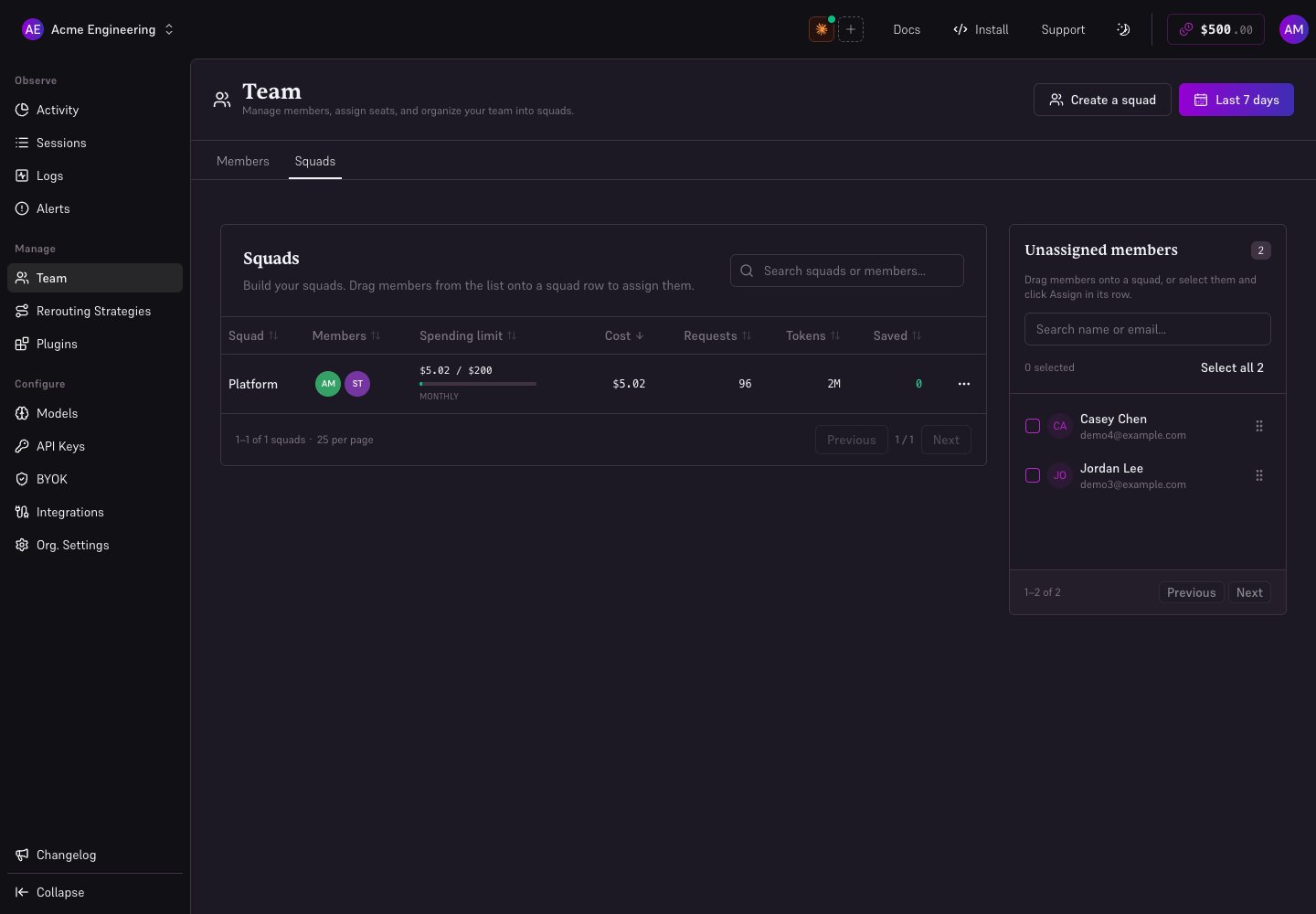
Squads are a hosted-only feature available on AI Gateway paid plans. ☁️
How settings resolve
Settings follow a three-tier hierarchy:- Organization — enforced globally; overrides everything below it when set.
- Squad — applies to all members of the squad; overrides individual key defaults.
- API key — per-key overrides, within whatever the squad and org allow.
Creating a squad
Go to Team → Squads in the console sidebar. Click Create Squad.Name and describe the squad
Enter a name (required, max 100 characters, unique within the organization) and an optional description (max 500 characters). Pick a name that reflects the team’s function —
backend, mobile, infra, and so on.Select members
Choose from the list of organization members. Only members who hold an AI Gateway seat are eligible. A member can belong to at most one squad — members already assigned to another squad appear greyed out in the selector.
Squad settings
Open a squad card to see two tabs: Members and Settings.Members tab
Add or remove members at any time. Removing a member from a squad does not revoke their AI Gateway seat — it returns them to org-level defaults.Settings tab
Compression
Each compression strategy can be toggled independently per squad:| Strategy | What it does | Default |
|---|---|---|
| Tool Result Trimming | Strips boilerplate from CLI and tool outputs before they reach the model | Inherits from org |
| Tool Surface Reduction | Narrows the tools list sent to the model to task-relevant entries ⚠️ alpha | Inherits from org |
| Output Brevity | Reduces model response verbosity without dropping technical content | Inherits from org |
tool_result_trimming = true org-wide), the squad-level toggle is locked and shows the org value.
See Token Compression for a full description of each strategy.
Model routing
Configure fallbacks (alternate models when the primary is unavailable) and reroutes (redirect all traffic to a different model) for squad members. These override the organization routing defaults for the squad. See Retry & Fallback for routing details.BYOK
Assign one or more provider keys to the squad. Requests from squad members are billed to those keys. Enable BYOK only to prevent squad members from using Edgee credits entirely — all requests must go through a registered provider key.Spending limit
Set a cap on how much the squad can spend. Configure:- Max spend: a dollar amount (0 = unlimited).
- Period:
daily,monthly, orall time.
Squads grid
The Squads tab shows one card per squad with:- Member count
- Tokens, requests, cost, and savings for the selected period
- Spending limit progress bar (if a limit is set)
Permissions
| Action | Required role |
|---|---|
| View squads and settings | Any organization member |
| Create, update, or delete a squad | Admin |
| Add or remove members | Admin |
| Update squad settings | Admin |
Next steps
Token Compression
Learn about the three compression strategies and how they reduce token costs.
Alerts & Budgets
Set alerts at the squad level to get notified before spending limits are reached.
BYOK
Register provider keys to route squad traffic through your own billing accounts.
Retry & Fallback
Configure per-squad model routing and automatic failover.